
The success of QuickTime since its introduction in December of 1991 has been
extraordinary; not only are there now countless applications and multimedia products
for QuickTime on the Macintosh platform, but QuickTime has been successful for
cross-platform developers as well. QuickTime for Windows, shipping since November
of 1992, is becoming an important tool for Windows multimedia developers. Because
movies can be created with QuickTime on the Macintosh and then used unaltered with
QuickTime for Windows, developers are able to create a movie once and use it on both
systems. This capability has been available since the 1.0 release of QuickTime.
To satisfy your curiosity and help you out with your own QuickTime products, this
column discusses how to create movie files that are cross-platform compatible and
then gives techniques for storing and accessing multiple movies in a single file (which
currently poses a problem in the cross-platform environment).
CREATING CROSS PLATFORM-COMPATIBLE MOVIE FILES
The structure you choose for your QuickTime movie files will depend in part on the
platform your movies will run on. This is because the Macintosh file system is
different from other file systems in that there can be up to two forks in every file: a
data fork and a resource fork. The data fork is the standard file for I/O that most file
systems support. The resource fork, however, is unique to the Macintosh. It's a
"database" of resources that can be randomly accessed via the Resource Manager.
There are two components to a movie file: themovie resource atom -- a small data
structure describing the movie, its tracks, and the tracks' media -- and themovie data
atom, containing the movie's data such as video and sound. A typical movie file on the
Macintosh consists of a movie resource atom in the resource fork and a movie data
atom in the data fork. Storing the movie resource atom in the resource fork with
resource type 'moov' allows easy random access to the data it contains. The movie data
atom is stored in the data fork as sequential data, which optimizes playback
performance.
Because file systems on other platforms don't support a resource fork, a movie that is
to be used on other platforms must have its movie resource atom stored in the data
fork of the movie file. This type of file is called asingle-fork file because the movie
resource atom and the movie data atom are both stored in the data fork of the movie
file, and the resource fork is not used.
Movies that will be played on both Macintosh and non-Macintosh platforms can use a
file in which the movie resource atom is redundantly stored in both the resource fork
and the data fork of the file. The movie data atom is, as always, stored only in the data
fork. For lack of a better term, this type of file is also often called a single-fork file
since the resource fork of the movie file can be ignored.
The simplest way to create a single-fork movie file for cross-platform compatibility
is to use the Movie Converter application from the QuickTime Starter Kit (available
from Apple-authorized dealers). The Save As dialog in this application has a checkbox
that allows a movie to be stored in thesingle-fork format. However, the QuickTime API
can easily be used to add this capability to any application. You simply call either
FlattenMovie or FlattenMovieData with the flattenAddMovieToDataFork flag set. When
called with this flag set, FlattenMovie places the movie resource atom in both forks,
while FlattenMovieData puts it only in the data fork, leaving the resource fork
untouched.
Movie files that are created with FlattenMovie orFlattenMovieData with the
flattenAddMovieToDataForkflag set are compatible with both QuickTime and QuickTime
for Windows because QuickTime is able to retrieve the movie resource atom and the
movie data from the data fork alone on either platform.
MULTIPLE-MOVIE FILES FOR THE MACINTOSH
We'll return to cross-platform issues in a moment, but first let's take a look at the
simple case of multiple-movie files: those that will be used only on the Macintosh
platform. You can create such files in one of two ways, depending on whether you want
the resulting file to be self-contained (that is, to contain all of the movie information
in one file). Both of these methods have their benefits and drawbacks. The one that
will work best for you depends on your implementation and performance testing.
To create a self-contained multiple-movie file for the Macintosh, you can use the
FlattenMovie call (without the flattenAddMovieToDataFork flag set) to append an entire
movie to an existing movie file. This adds the movie resource atom to the resource fork
and the movie data atom to the data fork of the file.
The second method creates a multiple-movie file that's not self-contained, but instead
consists entirely of movie resource atoms that reference other movie files containing
the movie data atoms. This technique can be useful if, for example, you're writing an
interactive CD application that uses multiple movies and you want to store all the
movie resource atoms in a single file that's relatively small. This file can be copied
locally to a hard disk for faster access. The drawback of this approach is that you have
to handle multiple files rather than have everything in one file. The excerpt below
from the sample code provided on the CD demonstrates -- without error checking, for
better readability -- how easy it is to add an existing movie's resource atom to a
movie file.
// Open source movie file to add.
OpenMovieFile(&reply.sfFile, &sourceRefNum, fsRdWrPerm);
NewMovieFromFile(&theMovie, sourceRefNum, &resId,
    movieName, 0, (Boolean *) 0);
CloseMovieFile(sourceRefNum);

// Write out to the collection file.
currentResFile = CurResFile();
UseResFile(collectionRefNum);
myResId = 0;
AddMovieResource(theMovie, collectionRefNum, &myResId,
    movieName);
UseResFile(currentResFile);

// Clean up.
DisposeMovie(theMovie);
AddMovieResource does more than just add the movie resource atom: it updates the data
references so that the new movie will refer to the correct movie data file.
Accessing multiple-movie files for Macintosh-only use is easy. You just use the
Resource Manager to access the movie resource atoms in the resource fork of the file.
The following excerpt from the sample code on the CD uses the Resource Manager to
access the various movies. (The code on the CD adds the resource names of all the
movies to a menu; your code can of course do whatever it wants with the movies.)
currentResFile = CurResFile();
UseResFile(theRefNum);
movieCount = Count1Resources('moov');
for (i=1; i<=movieCount; i++) {
    movieResource = Get1IndResource('moov', i);
    // Do whatever you want with this movie.
    . . .
    ReleaseResource(movieResource);
}
UseResFile(currentResFile);
CROSS-PLATFORM MULTIPLE-MOVIE FILES
To create a multiple-movie file that's cross-platform compatible, you just repeatedly
call FlattenMovie orFlattenMovieData with the flattenAddMovieToDataForkflag set, as
described earlier under "Creating Cross Platform-Compatible Movie Files." Accessing
such a file, however, is complicated. Since it's a single-fork file, you can't access the
movie resource atoms randomly as with the Resource Manager. There's also a problem
with accessing the atoms directly; to understand this problem, you need to know how a
single-fork movie file is structured.
The movie data atom appears before the movie resource atom in a single-fork file. The
first four bytes of the movie data atom contain the size of the atom. (Figure 4-2
inInside Macintosh: QuickTime , page 4-5, illustrates this structure.) This permits
QuickTime to skip over the movie data atom to find the movie resource atom. If you
place several movies in the same file, the movie data atoms are interleaved with the
movie resource atoms.
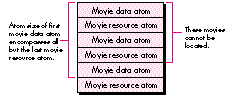
Here's the problem: A bug in QuickTime through its current version (1.6.1) causes
the size field in the movie data atoms to be filled in incorrectly. The illustration below
shows how QuickTime currently creates a single-fork movie file in which
FlattenMovieData has been called multiple times. The atom size in the first movie data
atom takes you to the last movie resource atom rather than the first movie resource
atom. Therefore, you can locate only the last movie in the file.
This bug will be fixed in the next version of QuickTime. The solution for now is to use
the wrapper function called BetterFlattenMovieData, included on this issue's CD. This
function, when called multiple times, creates a single-fork file in which the size and
type fields of all atoms contain the correct information.
To locate the movies in a file with correct size and type fields, you traverse the data
fork and read in those fields of each atom to determine its size and whether it's a movie
resource atom. When you know the size of the atom, it's easy to skip over it and access
the next atom. Of course, the last atom is reached when the end of the file is reached.
The following code from the CD demonstrates how you would do this.
// Locate the file offset of the movie resource
// atom stored at the specified index.
if (FSpOpenDF(theFile, fsRdPerm, &myRefNum)   == noErr) {
    currentLoc = 0;
    doneCounter = index;
    *fileOffset = 0;
    while ((doneCounter > 0)) {
          if (err = SetFPos(myRefNum, fsFromStart, currentLoc))
                 return(err);
          readLength = 8;
          if (err = FSRead(myRefNum, &readLength, header))
                 return(err);
    if (header[1] == 'moov')
          doneCounter--;
    *fileOffset = currentLoc;
    currentLoc += header[0];
    }
    FSClose(myRefNum);
} else
    return (err);
return (noErr);
MOVING ON
I'm happy to see that QuickTime is being used in new and exciting ways. By taking full
advantage of the cross-platform and multiple-movie capabilities of QuickTime, you
can bring your products to new heights. The sample code on the CD will start you on
your way. Enjoy!
JOHN WANG (AppleLink WANG.JY) is often seen sneaking around the Apple campus
with a heavy duffle bag that one would think to be dozens of 8*24 GC cards that John is
trying to get out of harm's way. But, in truth, John is protecting unknowing strangers
from his two attack dogs, shown above. *
For information on movie resource formats, see Chapter 4 of Inside
Macintosh: QuickTime. *
Thanks to Peter Hoddie, Don Moccia, and Brigham Stevens for reviewing this column.
*